This guide introduces the USB Storage Control module within the PrivateDLP & USB Disk Security web management console. Administrators can centrally deploy flexible USB security policies for all Windows endpoints to mitigate data leakage risks via portable storage devices, including USB flash drives, external hard drives, and mobile phones that mount as mass storage. Supported policy modes include read-only restriction, full USB blocking, and global USB whitelist management. The built-in USB application workflow allows end users to submit access requests for new USB devices, while administrators review, approve or reject all requests from a unified whitelist management panel.
1. Overview
Unauthorized copying of corporate documents to USB flash drives, mobile phones and portable storage remains one of the most common routes of enterprise data leakage. The USB Storage Control module enables administrators to remotely enforce uniform USB access rules for endpoint fleets. Policies are delivered from the web console to Windows clients, which execute restrictions locally.
Four configurable security modes cover typical enterprise security requirements:
Allow all USB storage devices
Block file copying (read-only access)
Block all USB storage connections entirely
Whitelist Mode: Only globally approved USB devices can be recognized
Whitelisted USB devices take effect across all managed endpoints within the organization. When Whitelist Mode is enabled on a workstation, any unapproved USB storage (including mobile phones used for file transfer) triggers an on-client request prompt, allowing employees to submit a whitelist application for administrator review.
2. Main USB Storage Control Page
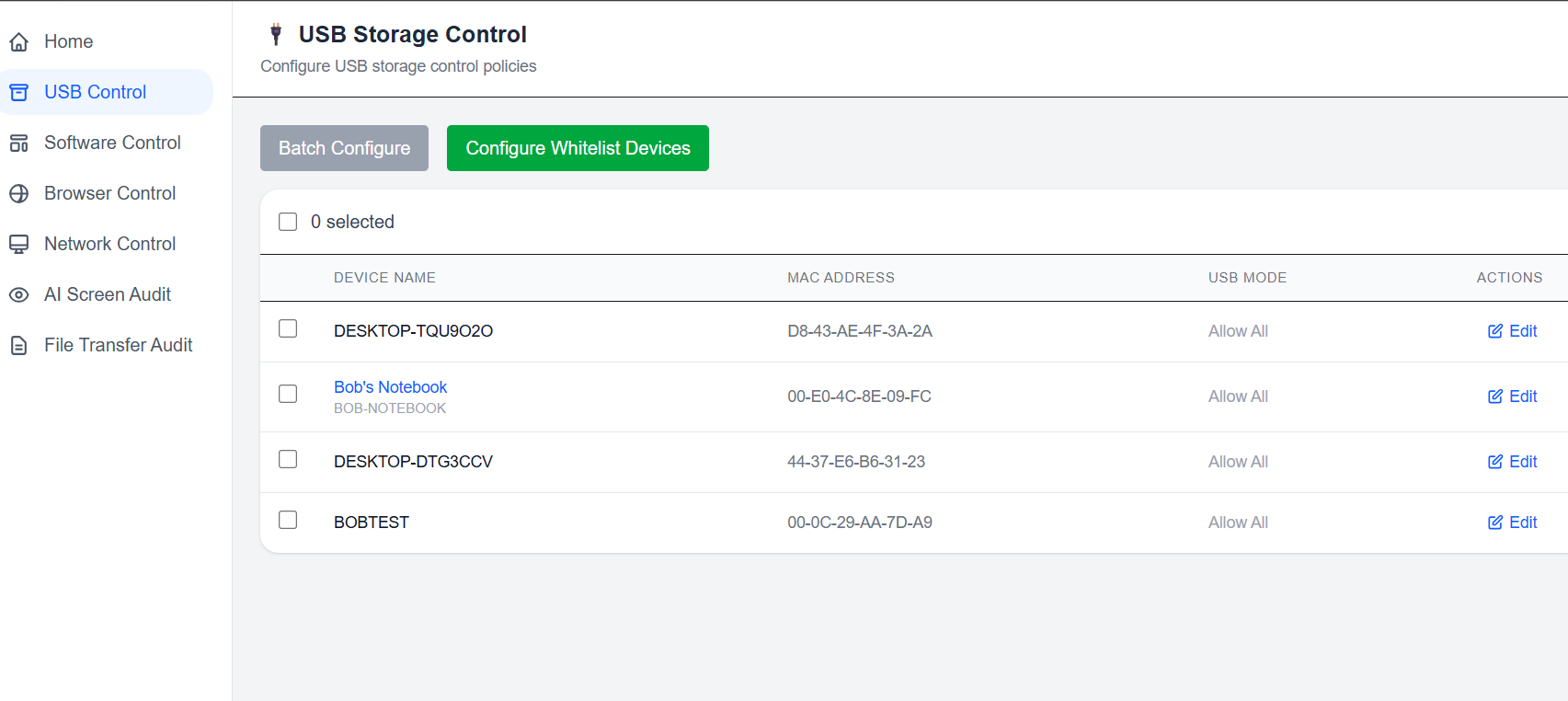
After selecting USB Control on the left navigation menu, administrators enter the main device list page.
The table displays all registered endpoints, showing each device’s active USB Mode at a glance.
Batch Configure: Select multiple endpoints to apply identical USB policies in bulk.
Configure Whitelist Devices: Quick entry to the centralized USB whitelist management panel.
Edit: Open the policy configuration pop-up to adjust USB rules for a single workstation.
3. Four Available USB Policy Modes
Click the Edit button beside any endpoint to open the Configure USB Storage Control window and select one enforcement mode:
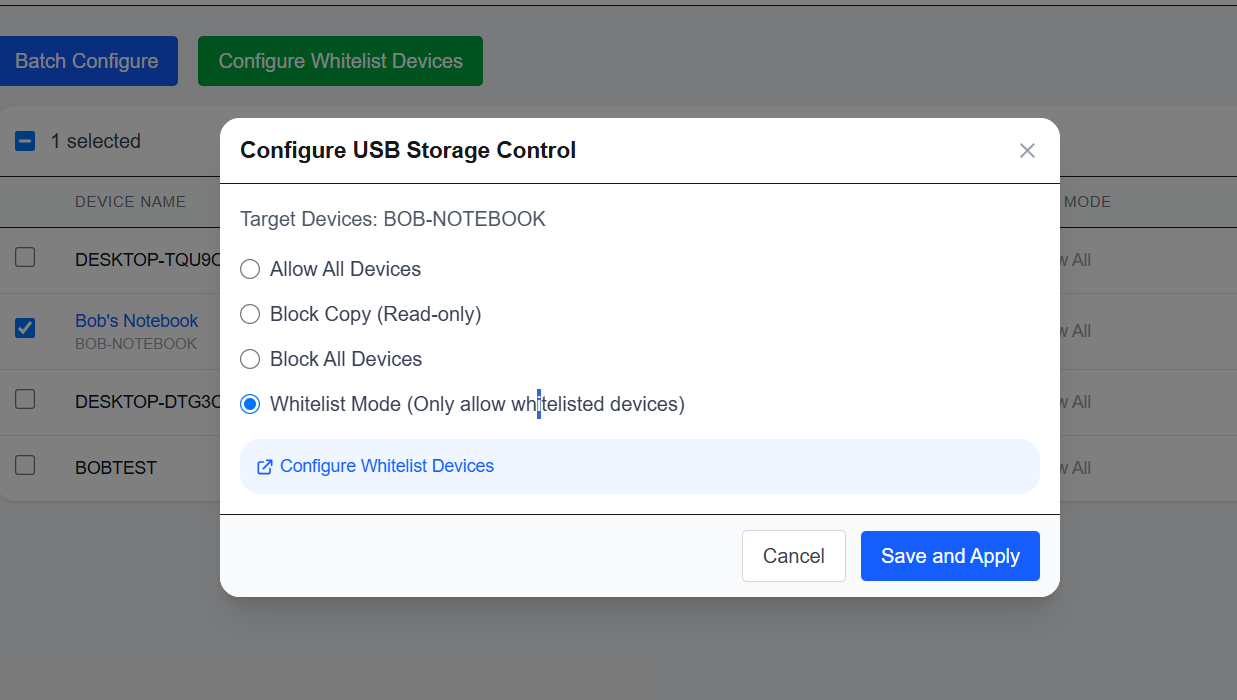
Allow All Devices
All USB mass storage devices, mobile phones and portable drives can connect and perform read/write operations. Suitable for low-security departments with unrestricted USB usage.
Block Copy (Read-only)
End users can view files on connected USB devices, but cannot copy or save any data from the local computer onto external storage. Prevents data export while retaining basic file viewing functionality.
Block All Devices
The client completely blocks recognition of all USB mass storage devices, including USB drives and mobile phones. No USB storage can mount or access data on the workstation.
Whitelist Mode (Only allow whitelisted devices)
Only USB devices added to the global corporate whitelist can connect normally. Any unapproved USB storage will be blocked automatically.
Click Configure Whitelist Devices inside this pop-up to jump to the whitelist management panel.
After selecting the required mode, click Save and Apply. The updated policy will be pushed to the target Windows endpoint and take effect immediately once the client synchronizes.
4. USB Whitelist Management Panel
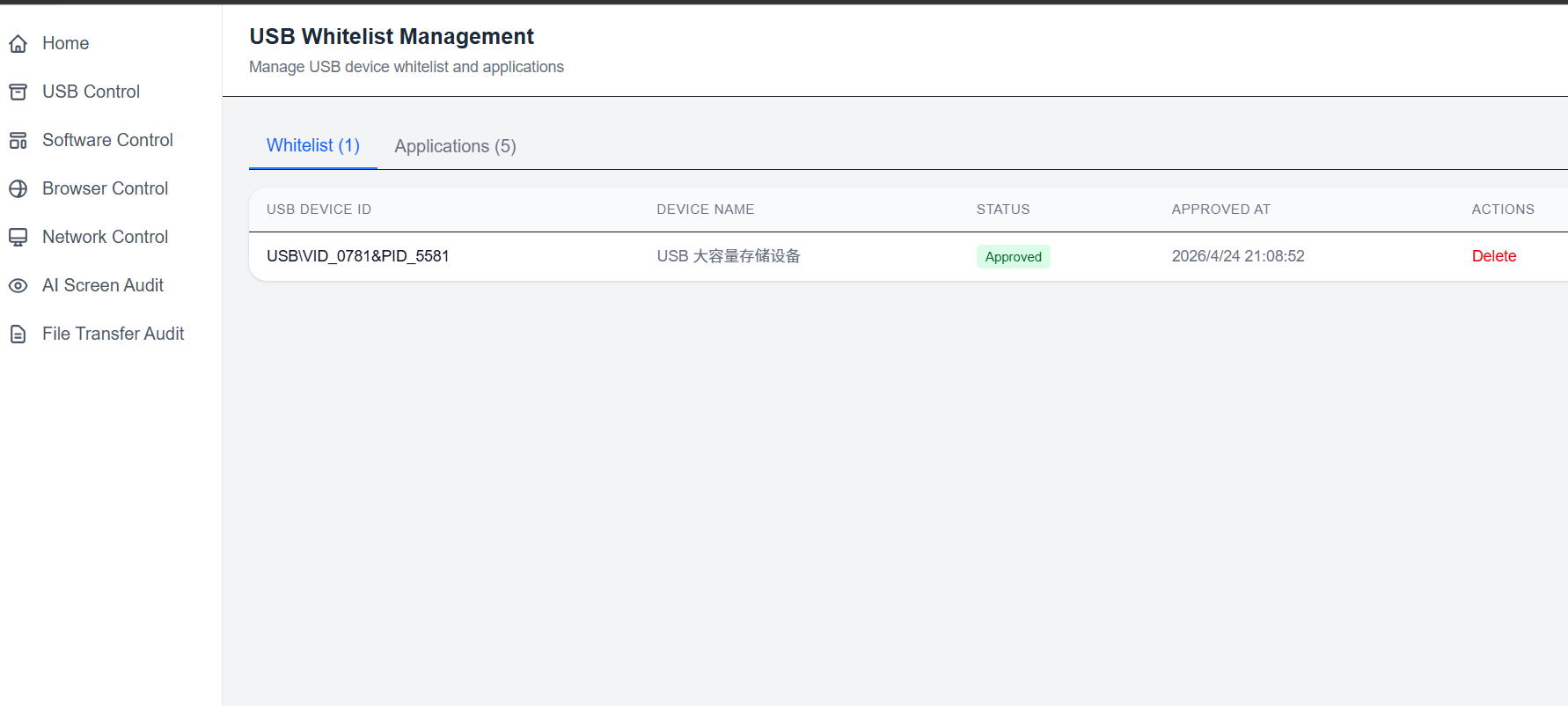
The whitelist panel contains two independent tabs: Whitelist and Applications. All approved USB devices work globally for every managed computer in your organization.
4.1 Whitelist Tab
This tab lists all officially approved USB storage hardware:
Shows unique USB Device ID (VID & PID), device name, approval status and approval timestamp.
Administrators can remove any device from the whitelist using the Delete action. Once deleted, the USB device will be blocked on all endpoints running in Whitelist Mode.
4.2 Applications Tab
This tab collects all pending USB access requests submitted by end users:
When Whitelist Mode is active on an endpoint and an unrecognized USB storage device (such as a new USB stick or mobile phone) is plugged in, a prompt appears on the employee’s computer, enabling them to submit a whitelist application automatically.
Each application record displays:
Unique USB Device ID
Device name
Pending approval status
Application submission time
MAC address of the workstation that submitted the request
Administrators have two actions for each pending entry:
Approve: Add the USB hardware to the global enterprise whitelist. The device will be permitted to connect to all endpoints with Whitelist Mode enabled.
Delete: Reject the application permanently; the USB device remains blocked.
5. Typical Workflow for USB Whitelist Request
Administrator sets an endpoint policy to Whitelist Mode and saves the configuration.
An employee inserts an unapproved USB storage device or mobile phone into the computer.
The Windows client blocks the device and pops up a request window for the user to submit a whitelist application.
The application record appears under the Applications tab of the USB Whitelist Management page.
The administrator reviews the request and chooses Approve or Delete.
After approval, the USB device becomes globally trusted and can connect to any managed workstation running Whitelist Mode.
6. Core Business Advantages
Multi-level data leakage prevention: Choose between read-only restrictions, full blocking or whitelisting to match different department security standards.
Global USB whitelist: Approved hardware works company-wide, avoiding repetitive whitelist configuration on separate PCs.
Controlled self-service application flow: Employees can request legitimate USB access without manual IT on-site support.
Unified remote management: All policies are configured centrally on the web console and automatically synced to Windows clients.
Covers all storage types: Controls USB flash drives, external disks and mobile phones that operate as mass storage devices.
7. Summary
The USB Storage Control module delivers flexible, enterprise-grade portable storage security. From simple read-only restrictions to strict global USB whitelisting with employee request workflows, it addresses the most common USB data exfiltration risks. Administrators can apply policies to single devices or batches of endpoints, manage all USB hardware approvals centrally, and enforce consistent storage access rules across the entire Windows endpoint fleet