Software Control is a built-in policy module available for both USB Disk Security (Standard Edition) and PrivateDLP (Pro Edition). IT administrators can centrally create and enforce application blocking rules via the web management dashboard, preventing prohibited executable processes from launching on employee Windows workstations. The feature supports per-device configuration and bulk batch deployment, flexible time-scheduled enforcement, and generates real-time alerts when users attempt to open restricted software, helping enterprises reduce non-work application usage and mitigate security risks introduced by unauthorized programs.
1. Overview
Unapproved software on corporate endpoints poses multiple risks: wasted employee productivity, introduction of malware, violation of corporate IT policies, and potential data leakage threats. The Software Control module delivers lightweight, user-mode application restriction without kernel driver conflicts. Administrators manage all rules remotely from the web console, and Windows clients automatically execute received policies.
Key capabilities include:
Individually configure rules for single endpoints or batch configure multiple selected devices
Block target applications by Windows process names (.exe executable files)
Two enforcement modes: permanent blocking or time-scheduled restriction
Time controls configurable down to hourly slots for each day of the week
Real-time notification for end-users when blocked software launch is attempted
Dashboard visibility to check whether software control policies are enabled on each device
2. Web Dashboard Interface Introduction
The Software Control main page displays all managed Windows endpoints in a unified table view.
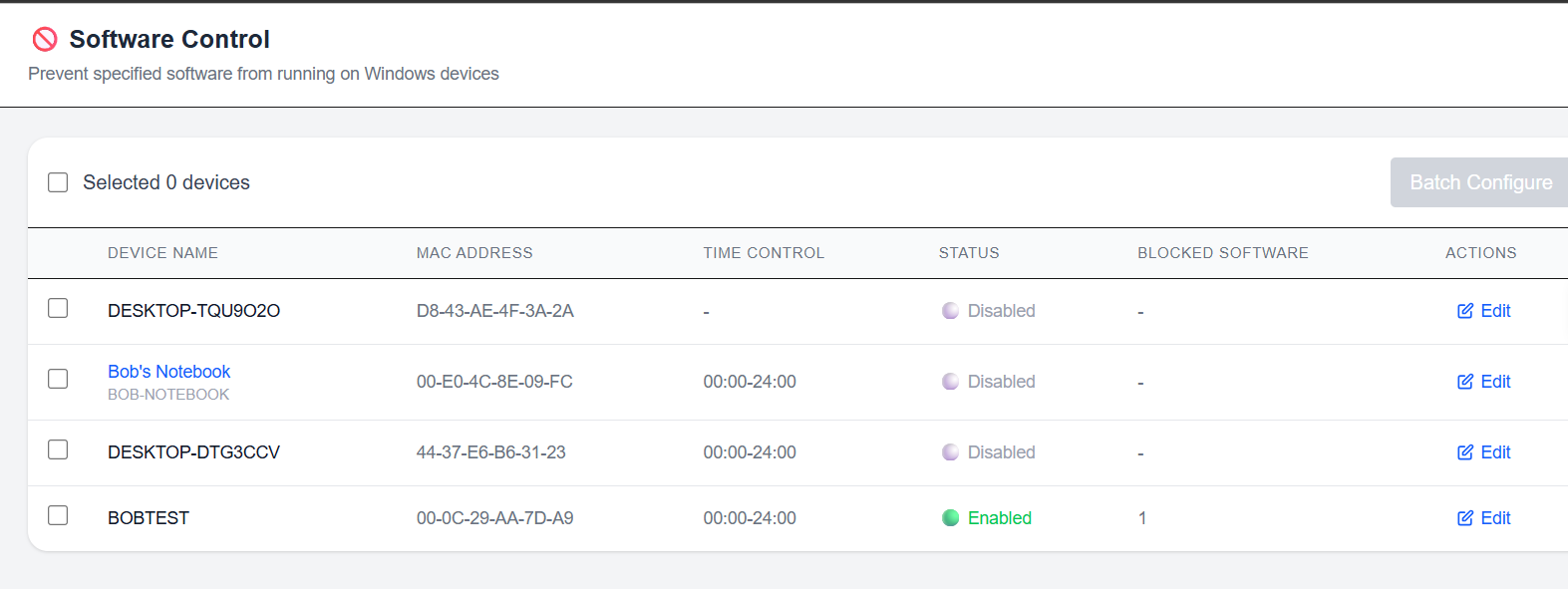
Columns include:
Device Name: Assigned workstation or notebook name
MAC Address: Unique hardware identifier for the endpoint
Time Control: Shows active scheduled time ranges for policies
Status: Toggle status (Enabled / Disabled) of software control rules
Blocked Software: Quantity of restricted executable processes for the device
Actions: Edit button to adjust individual device policies
Administrators can select multiple endpoints and click Batch Configure to roll out identical blocking rules to many devices simultaneously. Click the Edit button next to any device to open the configuration popup.
3. Configure Application Blocking Rules
Inside the Configure Software Control popup window:
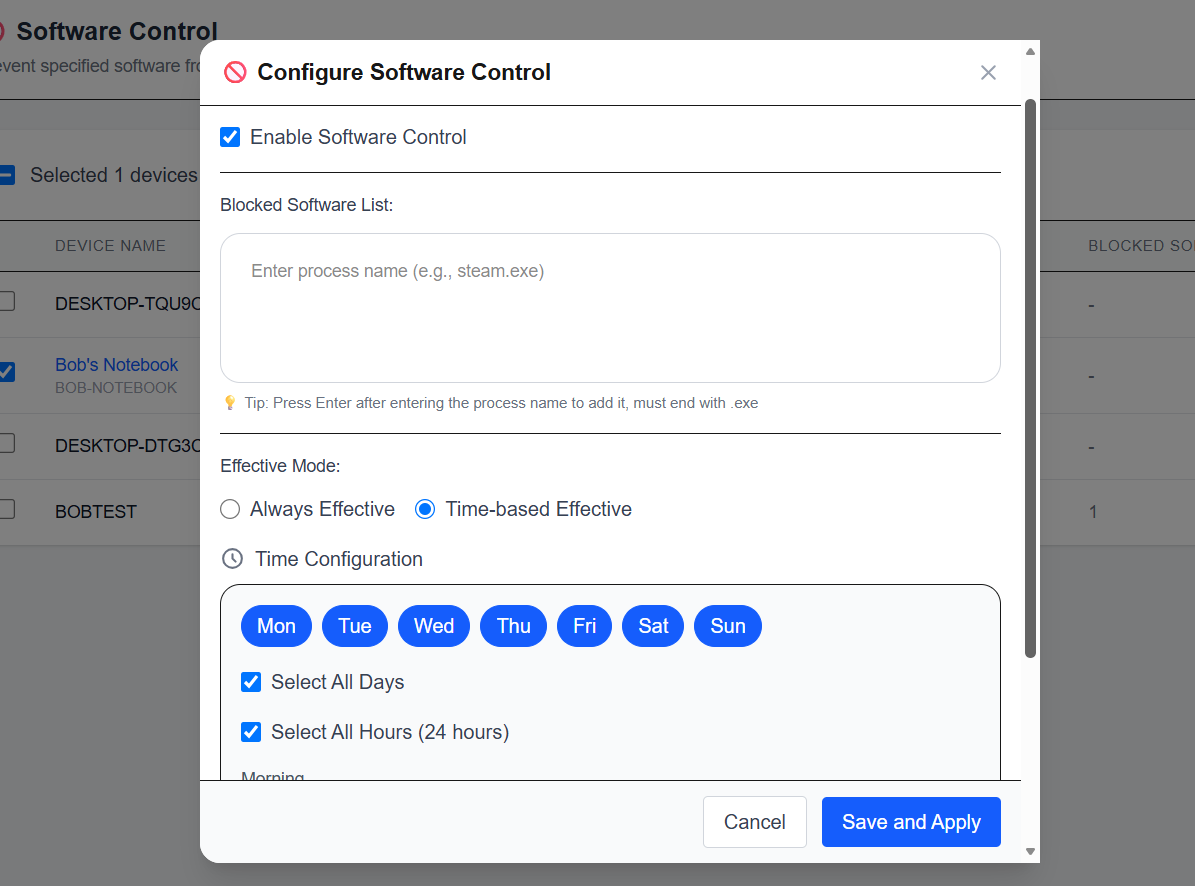
Tick Enable Software Control to activate restrictions for the target device(s).
Enter target process names (e.g. steam.exe, torrent.exe) in the input box and press Enter to add them to the Blocked Software List. All entries must use the full executable name ending with .exe.
Select an enforcement mode:
Always Effective: Block listed software 24/7 permanently
Time-based Effective: Activate restrictions only within defined time windows
For time-based rules:
Select applicable weekdays (Monday to Sunday)
Define precise hourly time slots for enforcement, with support for partial working-hour limitations
Click Save and Apply to push the policy to selected Windows clients. The client will receive and activate the new rule immediately.
4. End-User Experience & Alerting
If an employee tries to launch an executable present on the blocked list while the policy is active:
The application will be prevented from starting successfully.
An on-screen notification informs the user that the program launch has been restricted by administrator policy.
The endpoint automatically sends an event log back to the web management dashboard, allowing security teams to review violation records.
5. Typical Enterprise Use Cases
Block gaming, streaming and entertainment applications during working hours
Prevent unauthorized peer-to-peer file transfer tools that risk data leakage
Restrict unapproved chat or remote-access software on sensitive workstations
Enforce policy restrictions only within business hours while lifting limits during off-hours
Uniformly deploy software blacklists to all office devices via batch configuration
6. Compatibility Advantage
Consistent with the overall product architecture, Software Control operates entirely in Windows User Mode. No kernel-mode drivers are installed, so the feature works alongside third-party antivirus, EDR and other endpoint security products without stability or compatibility conflicts.