Network Control is a core policy module supported by USB Disk Security (Standard Edition) and PrivateDLP (Pro Edition). IT administrators can remotely restrict network connectivity for specified Windows executable applications via the web management dashboard. This feature works alongside Browser Control to deliver comprehensive web and application network governance. It supports single-device configuration, bulk batch deployment, and flexible time-scheduled enforcement. By cutting off internet access for unauthorized programs, enterprises block risky external connections, prevent data exfiltration, and standardize employee network usage.
1. Overview
Unregulated network access for third-party software creates critical security risks. Unauthorized applications may connect to external servers to transfer confidential business data, download malware, or enable unapproved external communication.
Network Control operates in Windows User Mode without requiring kernel drivers, avoiding compatibility conflicts with antivirus, EDR and other endpoint security tools. All policies are centrally defined on the web admin console, and Windows clients receive and enforce rules automatically.
Core capabilities:
Block network access for targeted applications by .exe process names
Matched operation workflow consistent with Software Control for administrator ease of use
Two enforcement modes: permanent blocking or time-scheduled restriction
Granular time configuration: select weekdays and precise hourly active windows
Support individual device editing and batch configuration for multiple endpoints
Seamless coordination with Browser Control to achieve full network access governance
Deployment Tip: Combine Network Control and Browser Control for complete oversight. Browser Control manages Chrome and Edge website access, while Network Control governs internet connectivity for all other executable programs.
2. Network Control Dashboard Overview
The main Network Control page displays all managed endpoints in a unified table view.
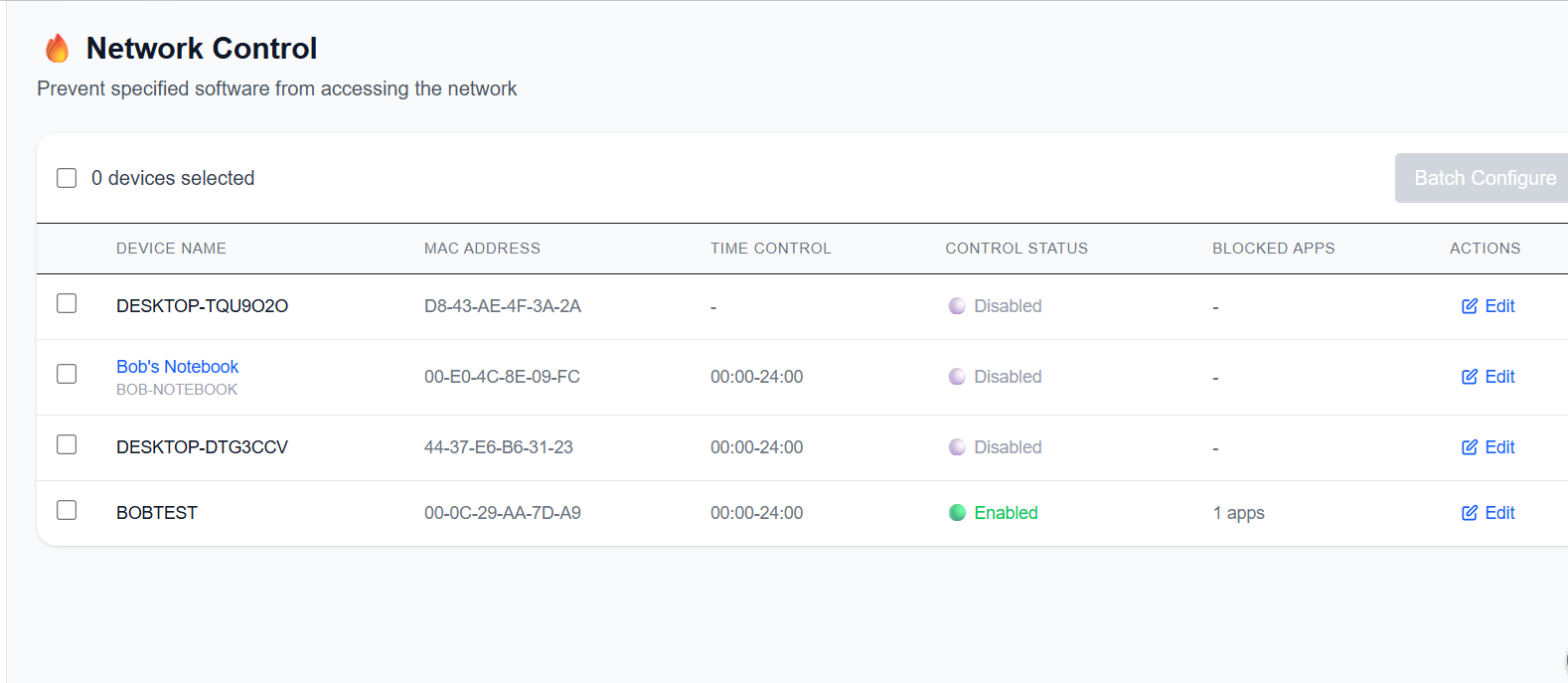
Table columns include:
Device Name: Name of managed Windows workstation or laptop
MAC Address: Unique hardware identifier for the endpoint
Time Control: Displays scheduled active time windows for network restrictions
Control Status: Enabled / Disabled status of the network control policy
Blocked Apps: Quantity of applications restricted from accessing the network
Actions: Edit button to adjust network control configuration
Administrators can select multiple endpoints and click Batch Configure to push identical network restriction rules to device groups. Click the Edit button to open the configuration popup window.
3. Configure Network Restriction Policies
Inside the Configure Network Control popup:
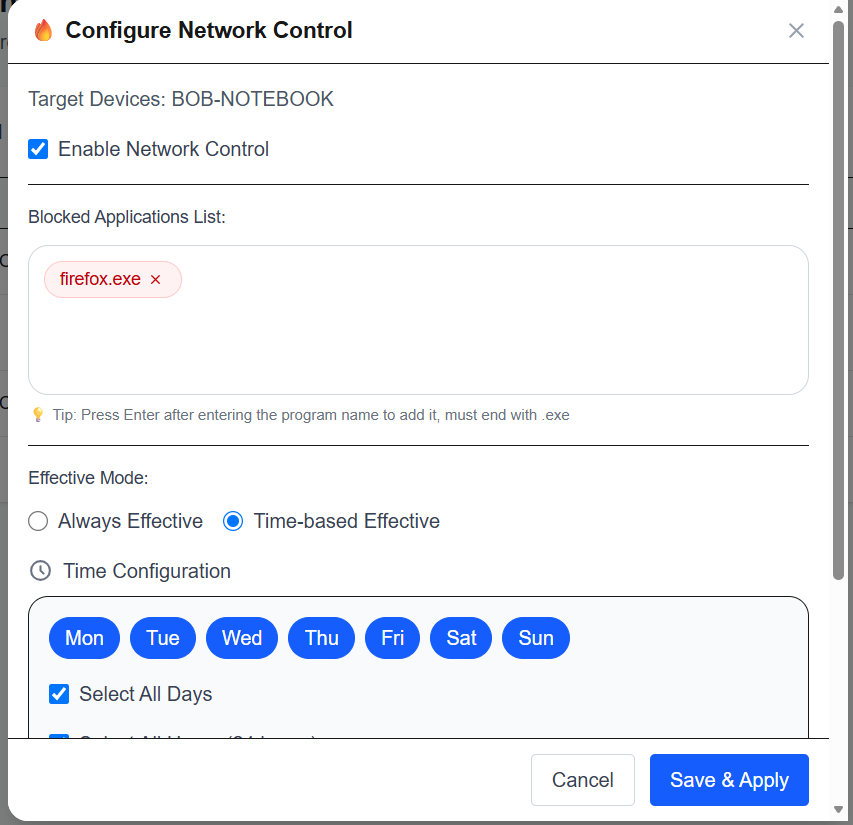
Check Enable Network Control to activate restrictions for the selected device(s).
Enter target executable names (e.g. firefox.exe) into the input box, press Enter to add processes to the Blocked Applications List. Entries must end with .exe.
Select an Effective Mode:
Always Effective: Block listed applications from accessing the network 24/7
Time-based Effective: Activate network restrictions only within defined time windows
Configure time-based rules:
Select applicable weekdays (Monday to Sunday)
Define precise hourly time slots to enforce network access limits
Click Save & Apply to distribute the policy to Windows clients. The client will activate the network rules immediately.
4. Endpoint Behavior & Audit Logs
When a blocked application attempts to establish an internet connection while the policy is active:
The software will fail to connect to external networks.
The endpoint generates a violation event log and synchronizes the record back to the web management console for security auditing.
5. Typical Enterprise Use Cases
Prevent unapproved browsers (such as Firefox) from connecting to the internet, complementing Chrome/Edge Browser Control
Block peer-to-peer file sharing tools to avoid sensitive data leakage
Restrict gaming, chat or entertainment applications from accessing external networks during working hours
Cut off unauthorized remote access software to prevent external intrusion risks
Relax network restrictions outside business hours via time scheduling
6. Compatibility Advantage
Network Control runs fully within Windows User Mode, with no kernel-mode driver installation. It maintains stable coexistence with third-party antivirus, endpoint protection software and other security solutions, eliminating the compatibility issues commonly found in traditional DLP and firewall tools.