The Home Overview page serves as the primary landing page of the PrivateDLP & USB Disk Security centralized web management console. Built for the Client/Server (C/S) architecture, this dashboard delivers a single-pane view of all connected Windows endpoints, displaying real-time connectivity status, subscription validity, and recent security alerts. Administrators can open a dedicated device configuration panel by clicking the **Details** button for any workstation, to adjust device aliases, toggle uninstall protection, activate email alert notifications, and review or modify all endpoint security policies including USB control, software restrictions and browser access rules. This article explains every core capability and daily operation workflow available on the Home Overview page.
1. Introduction
USB Disk Security (Standard) and PrivateDLP (Pro) share the same unified web management portal. Immediately after logging into the console, users land on the Home Overview page. Instead of navigating between separate functional modules for basic device visibility, administrators can monitor the full fleet status from this entry point. All endpoints installed with the Windows client will appear in the Device List.
All security policies defined on the web console are pushed remotely to Windows clients. The client enforces these rules locally and continuously uploads status logs and security events back to the server. The Home Overview acts as your central command hub for daily fleet monitoring and quick per-device configuration.
2. Device List: Core Table on Home Overview
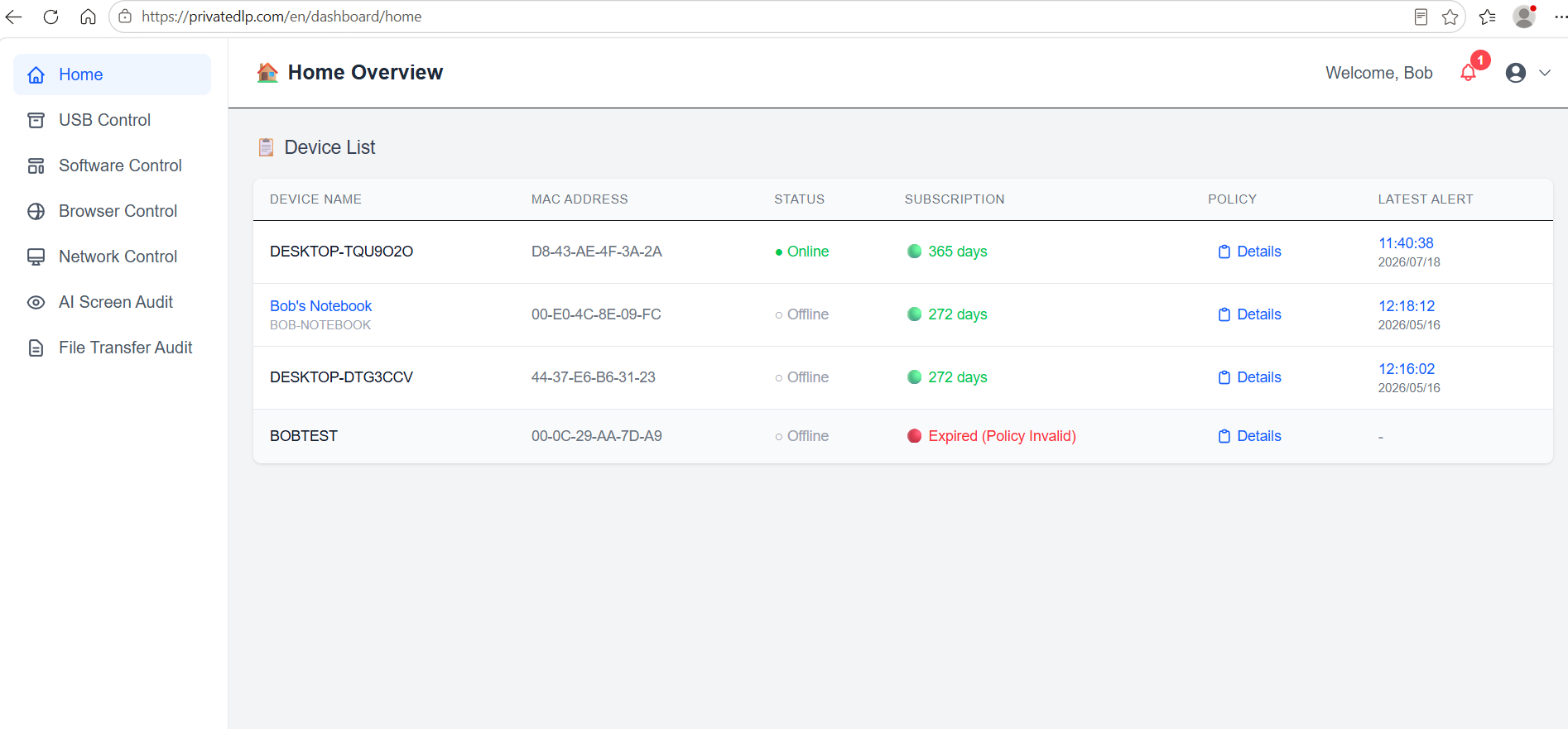
The Device List displays every registered Windows endpoint under your enterprise account. Each row contains the following key columns:
Device Name: The workstation hostname or customized display alias.
MAC Address: Unique physical identifier for the endpoint, used for stable device identification.
Status: Real-time connection status marked as Online or Offline, reflecting whether the client is actively communicating with the server.
Subscription: Shows remaining valid subscription days. A red Expired (Policy Invalid) label appears once the license lapses, indicating security policies will stop being enforced.
Policy: Contains the Details button to open the device configuration pop-up panel.
Latest Alert: Timestamp of the most recent security violation, USB threat detection or AI screen audit violation captured on the device.
Located in the top-right navigation bar, the alert icon displays a badge for unread notifications. When expanded, it shows a preview of recent violation details, including the type of incident, description, and target device. Typical alerts include AI screen policy violations, unauthorized USB file transfers, and detected USB malware.
3. Device Details Configuration Panel
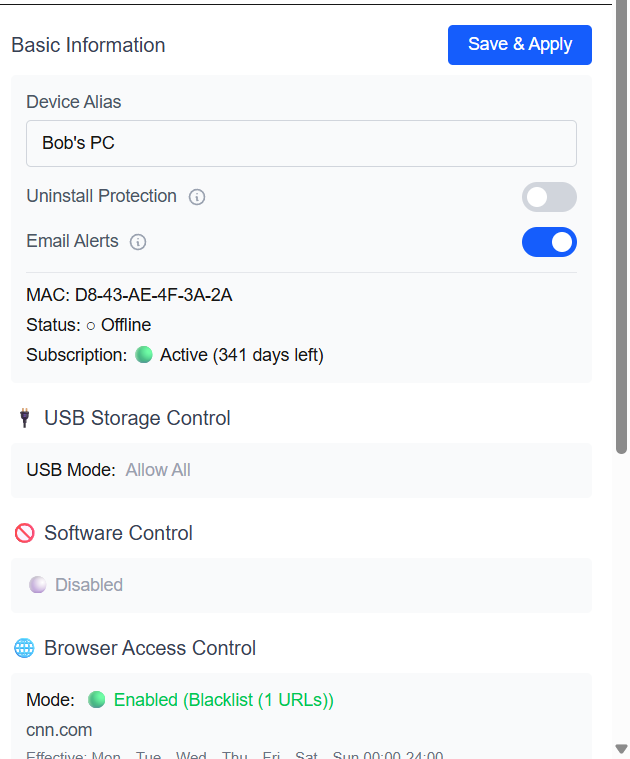
Click the Details button next to any device entry to launch the Policy Configuration Overview pop-up window. This panel consolidates basic device settings and all active security policies for quick review and modification.
3.1 Basic Information Section
Device Alias: Editable text field for renaming the endpoint, allowing administrators to set human-readable labels (such as employee names or department tags) for easier identification.
Uninstall Protection: Toggle switch. When enabled, local end users cannot remove the Windows client without administrator authorization, preventing deliberate bypass of enterprise security rules.
Email Alerts: Toggle switch to activate email notifications. Once enabled, administrators receive instant email alerts for critical events:
USB virus detection
Sensitive file copying to USB storage
AI screen audit violations and workplace policy breaches
Read-only reference information: Fixed MAC address, real-time online/offline heartbeat status, and remaining subscription duration.
3.2 Overview of All Active Security Policies
Scroll further down to view the current enforcement status of all endpoint security rules deployed to this workstation:
Policies shared by USB Disk Security (Standard) and PrivateDLP (Pro)
USB Storage Control Configure USB operating modes: Allow All, block USB data copy, fully restrict USB access, or enforce trusted USB whitelists. It also manages USB real-time protection, automatic scanning and quarantine for USB-borne malware.
Software Control Enable or disable application restrictions, block blacklisted programs from launching, and prohibit specified applications from connecting to the internet.
Browser Access Control Deploy website whitelist or blacklist rules to regulate employee web browsing, with configurable effective time windows.
Exclusive Advanced Policies for PrivateDLP (Pro)
File Transfer Audit: Track all file copy operations between local drives and USB devices, and trigger alerts when predefined sensitive file formats are copied externally.
AI Screen Audit: Manage intelligent screenshot auditing, natural language entertainment/alert rule configuration, employee self-service pause limits for monitoring, and privacy-compliant productivity tracking.
After completing any adjustments inside the panel, click Save & Apply. Updated policies are pushed to the target endpoint automatically and take effect once the client receives the new configuration.
4. Typical Daily Administrator Workflows Using Home Overview
Fleet Health Check: Quickly scan the list to spot offline workstations and expired subscriptions that require renewal.
Security Incident Review: Check the Latest Alert column and notification dropdown to identify endpoints with recent policy violations.
Targeted Device Configuration: Open the Details panel to rename devices, turn on uninstall protection, or activate email alerts for high-risk terminals.
Quick Policy Validation: Verify whether expected USB, browser, and application restrictions are active on selected endpoints without switching to separate menu modules.
5. Important Notes
Policy changes saved in the Details panel only apply to the individual selected device. To deploy identical rules to multiple endpoints in bulk, use batch configuration functions within dedicated module pages such as AI Screen Audit.
If a device shows as Offline, policy updates will be queued and automatically applied once the client reconnects to the web console.
Uninstall Protection and Email Alert settings are synchronized to the Windows client in real time after clicking Save & Apply.
6. Summary
The Home Overview dashboard delivers at-a-glance visibility for your entire Windows endpoint fleet, forming the starting point for daily security operations. Administrators can monitor connectivity, license status, and security alerts centrally, while accessing fast-track per-device configuration via the Details panel. This streamlined workflow reduces navigation overhead and simplifies routine management for both Standard USB Disk Security deployments and advanced PrivateDLP enterprise environments.