This guide describes how to access, view and download USB file transfer logs through the PrivateDLP web dashboard, including log entry structure, historical query methods, log download operations and standard incident investigation workflows. Complete transfer logs provide solid audit evidence for enterprise data leakage prevention, compliance audit and security incident response.
1. Overview
File Transfer Audit automatically records every file copy operation from Windows endpoints to USB storage devices. All event data is uploaded to the management platform and stored as structured logs. Administrators can view per-device transfer history, download detailed log files, and trace the outflow path of sensitive data through the web dashboard.
Log data is stored independently from alert events: even non-sensitive file transfers are fully recorded for full audit coverage, while rule-matched transfers additionally generate alerts in the Alert Center.
2. Accessing Device Transfer Logs
2.1 Entry from device list
Log in to the PrivateDLP web dashboard and select File Transfer Audit from the left navigation menu.
Locate the target device in the device list. Each device row shows its audit status, latest alert time and action buttons.
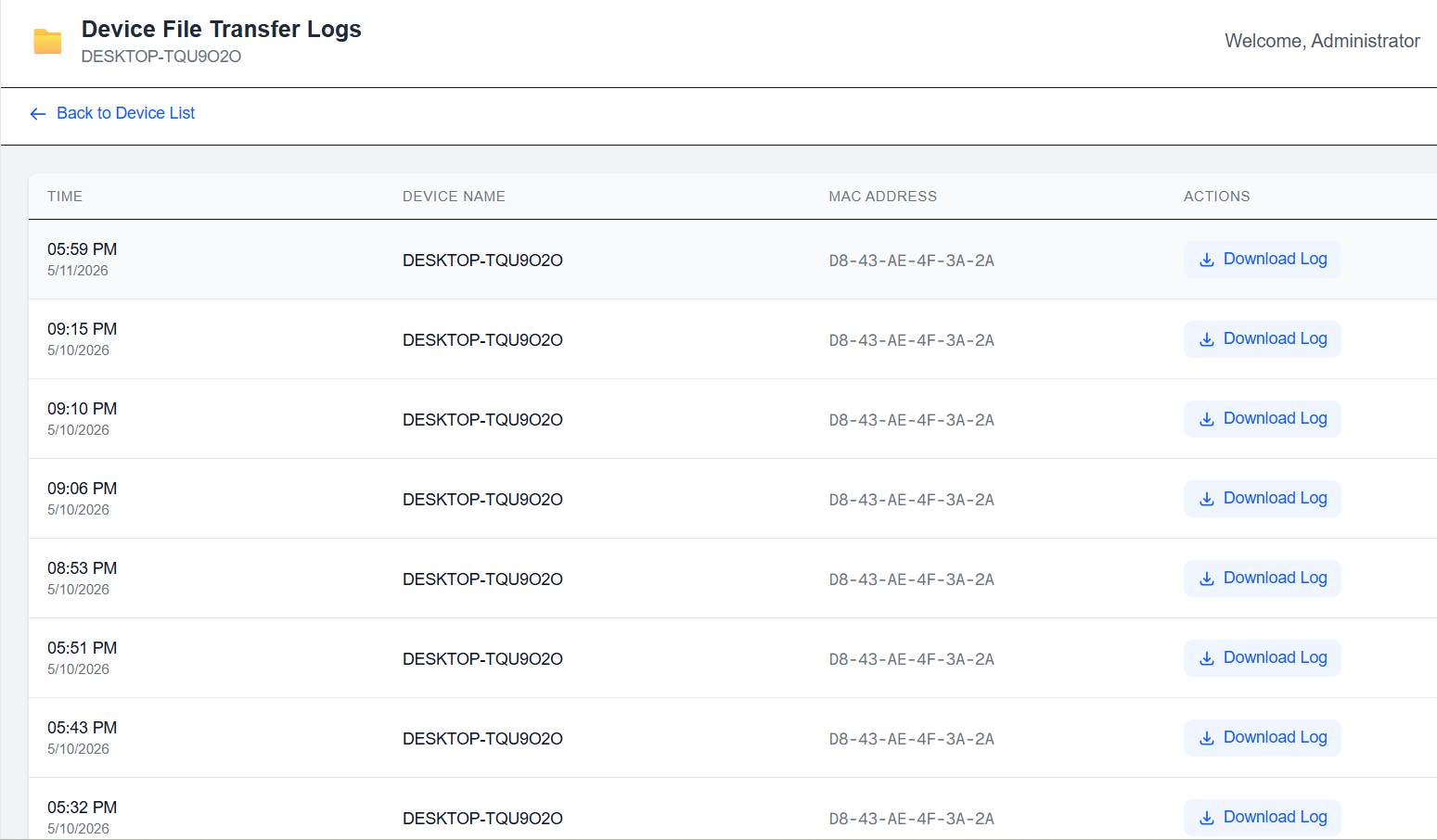
Click the View Logs link on the target device row to enter the dedicated Device File Transfer Logs page for that endpoint.
2.2 Return to device list
Click Back to Device List in the upper-left corner of the log page to return to the full device overview.
3. Log List Overview
The log list displays all historical file transfer events for the selected device, with the following core fields:
Time: Exact date and time when the file transfer operation occurred.
Device Name: Hostname of the endpoint where the transfer took place.
MAC Address: Hardware MAC address of the device, used for unique identity verification.
Actions: Operation button for each log entry.
4. Viewing and Downloading Log Details
4.1 Download a single log
Locate the target transfer event in the log list.
Click the Download Log button on the corresponding row.
The system will download a detailed log file containing complete information about this transfer event.
4.2 Log file content
Each downloaded log record includes the following detailed information:
Full source file path and filename on the endpoint
File size and file type
Target USB device identifier and volume label
Transfer start time and completion time
Transfer operation result (success / failed / blocked)
Whether the file matched any sensitive alert rule
5. Historical Log Query and Management
Time range: Logs are sorted chronologically with the latest events at the top. Scroll down to load earlier historical records.
Retention period: Transfer logs are retained according to enterprise policy. By default, logs are stored persistently for compliance audit purposes.
Cross-device query: To investigate a data leakage incident, access the log page of each relevant device in turn to trace the complete data transfer chain.
6. Standard Incident Investigation Workflow
Receive alert: A File Transfer alert appears in the Alert Center, indicating a sensitive file rule has been triggered.
Locate device: Identify the endpoint and exact time of the violation from the alert summary.
Enter log page: Navigate to the File Transfer Audit page of the corresponding device and locate the matching transfer event.
Download evidence: Download the detailed log of the event to obtain file name, target USB device and timestamp information.
Disposal and closure: Take follow-up measures according to enterprise security policy, and update USB control rules or sensitive file definitions if needed.
7. Data Security and Compliance
All transfer log data is transmitted and stored in encrypted form.
Only authorized administrators have log viewing and download permissions.
Log data is stored on enterprise-designated storage by default. For enterprises with higher compliance requirements, custom S3-compatible storage or on-premises storage deployment is available via customized service.
Log records meet the traceability requirements of common data security regulations and internal control audit standards.