File Transfer Audit is an exclusive data leakage prevention capability of PrivateDLP Pro Edition. Built upon standard USB device control, it enables full traceability of file copy operations between Windows endpoints and USB storage devices, supports filename/extension-based sensitive file alert rules, and integrates with the unified Alert Center for real-time violation notifications. This module addresses the limitation of traditional rule-based DLP that only blocks operations but cannot retain audit evidence, helping enterprises track data outflow, investigate security incidents, and enforce USB data governance.
1. Introduction
File Transfer Audit extends the USB protection capabilities of the standard USB Disk Security into a full-lifecycle data governance module. While the standard edition focuses on blocking unauthorized USB access and write operations, PrivateDLP goes further: it records every file copied to removable USB drives, triggers instant alerts when sensitive files are transferred, and provides downloadable audit logs for compliance and incident response.
This feature is deployed via the same client-server architecture as other PrivateDLP modules. The Windows client executes audit policies issued from the web dashboard, captures file transfer events in real time, and synchronizes logs and alert data back to the management platform. All policies can be configured per device or applied in batch across the entire enterprise fleet.
2. Core Capabilities
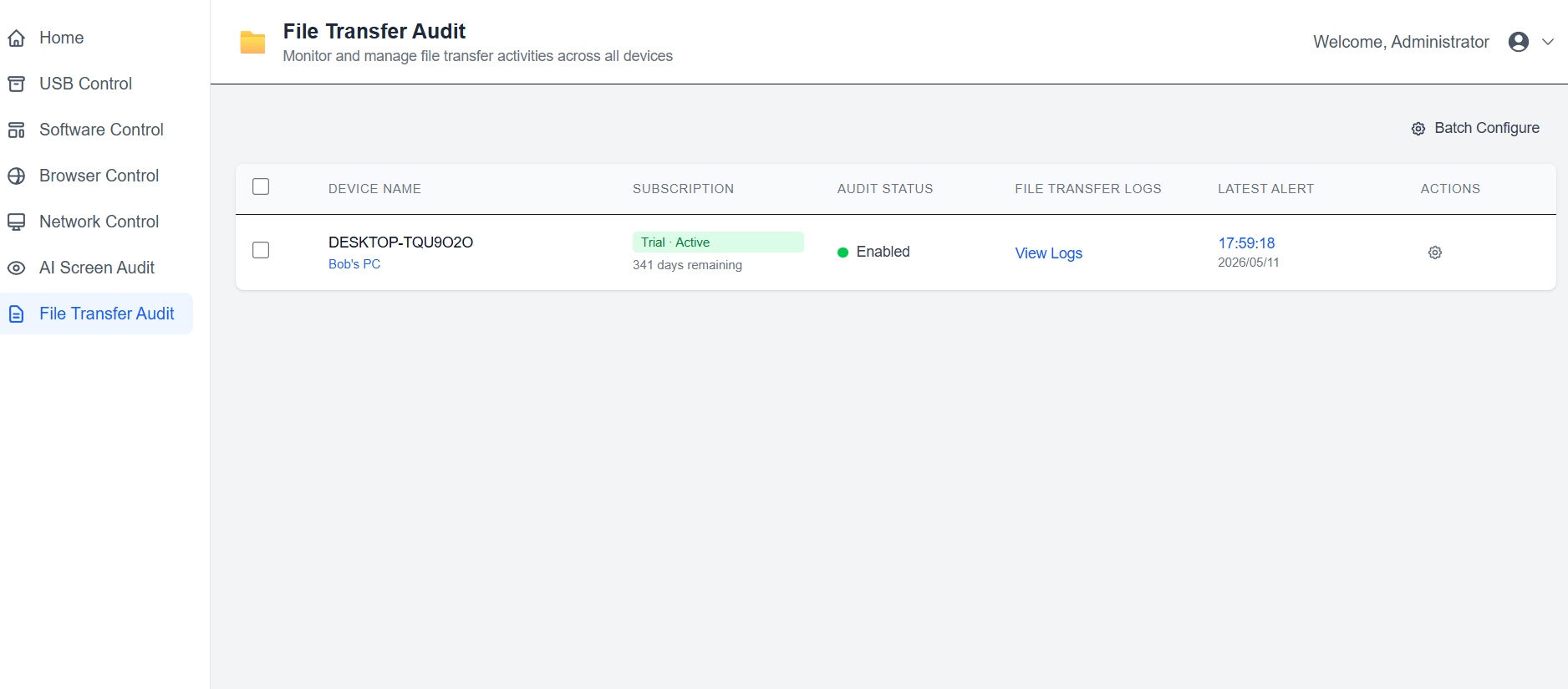
Full file transfer recording: Logs every file copied from endpoint to USB drive, including filename, timestamp, target USB device identifier and operation result, for complete audit traceability.
Sensitive file alert rules: Supports exact filename matching and wildcard extension matching (e.g. .doc, .tsx) to define confidential file categories. Matched transfer operations trigger immediate system alerts and email notifications.
Unified Alert Center integration: All file transfer violation alerts are consolidated into the central Alert Center alongside virus detection and AI violation events, for single-pane-of-glass security management.
Flexible policy deployment: Configure audit policies for individual devices or push uniform rules to multiple endpoints in batch, adapting to department-level and enterprise-level governance needs.
Downloadable audit evidence: Administrators can download complete transfer logs for any device, supporting incident investigation, compliance audit and internal control verification.
3. Prerequisites
Subscription: PrivateDLP Edition active subscription (Standard USB Disk Security does not include this feature).
Client environment: Windows endpoints with PrivateDLP client installed and online.
Account permission: Administrator access to the PrivateDLP web dashboard with device management and policy configuration rights.
USB device recognition: Target USB drives must be normally recognized by the Windows system for audit to take effect.
4. Quick Start: 3-Step Deployment
Step 1: Enable File Transfer Audit
Log in to the PrivateDLP web dashboard and navigate to the File Transfer Audit page from the left sidebar.
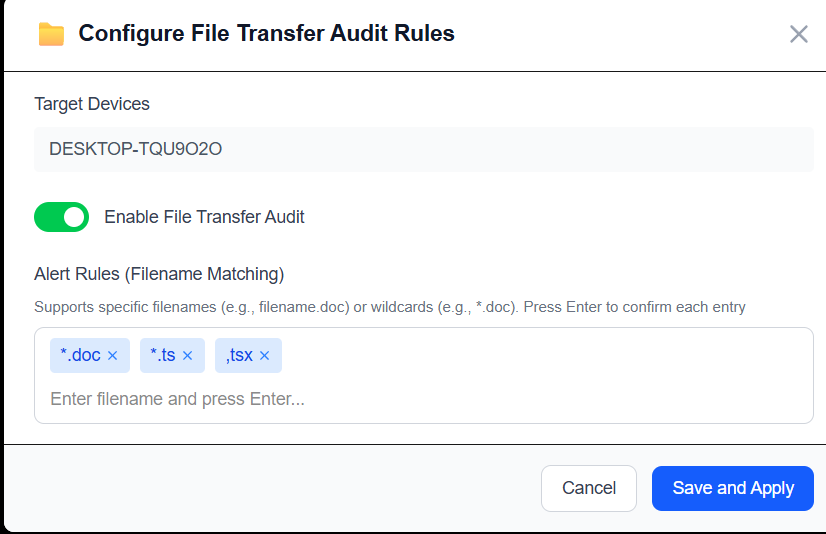
Locate the target device in the device list, open the configuration panel, and toggle on Enable File Transfer Audit.
Confirm the policy is delivered. The Audit Status on the device list will update to Enabled once the client receives the policy.
Step 2: Configure sensitive file alert rules
In the same configuration panel, add alert rules under Alert Rules (Filename Matching).
Enter exact filenames or wildcard extensions (e.g. confidential.xlsx, *.pdf), press Enter to confirm each entry.
Click Save and Apply to push the rules to the endpoint. Rules take effect within 1 minute.
Step 3: Verify and view logs
Perform a test file copy to a USB drive on the target endpoint.
Return to the File Transfer Audit device list and click View Logs on the corresponding device.
Confirm the transfer event appears in the log list. If a sensitive file rule was matched, an alert will also appear in the Alert Center.