This document introduces the **employee-initiated monitoring pause feature** built into PrivateDLP AI Screen Audit. Administrators configure daily pause quotas and single-session durations centrally from the web management console. Authorized end users can temporarily suspend AI screen auditing via the client system tray when handling personal, private tasks. The feature delivers a balanced framework: enterprises retain overall endpoint security oversight while respecting employee privacy needs, helping organizations deploy workplace monitoring in a more transparent, human-friendly, and compliance-aligned manner.
1. Feature Overview
Traditional endpoint monitoring solutions operate in an all-or-nothing mode. Once administrators activate surveillance, employees have no way to temporarily pause data collection when conducting personal activities, which often leads to privacy concerns, internal friction, and compliance risks.
PrivateDLP introduces a configurable self-service pause mechanism exclusive to the AI Screen Audit module:
IT administrators define all pause policies remotely via the centralized web dashboard;
End users trigger temporary monitoring suspension locally through the Windows system tray client;
All pause activities are fully logged and subject to pre-defined limits to prevent abuse;
Administrators can enable or disable this function entirely for individual devices or device groups.
This design achieves a critical balance: continuous enterprise data leakage prevention capabilities remain intact, while staff gain controlled flexibility to manage personal privacy during working hours.
2. Administrator Configuration Workflow (Web Management Console)
All pause parameters are managed on the AI Screen Audit page inside the PrivateDLP web dashboard.
Navigate to the AI Screen Audit menu from the left sidebar. The page displays the full list of connected endpoints, showing AI audit status, daily activity statistics, and recent alerts.
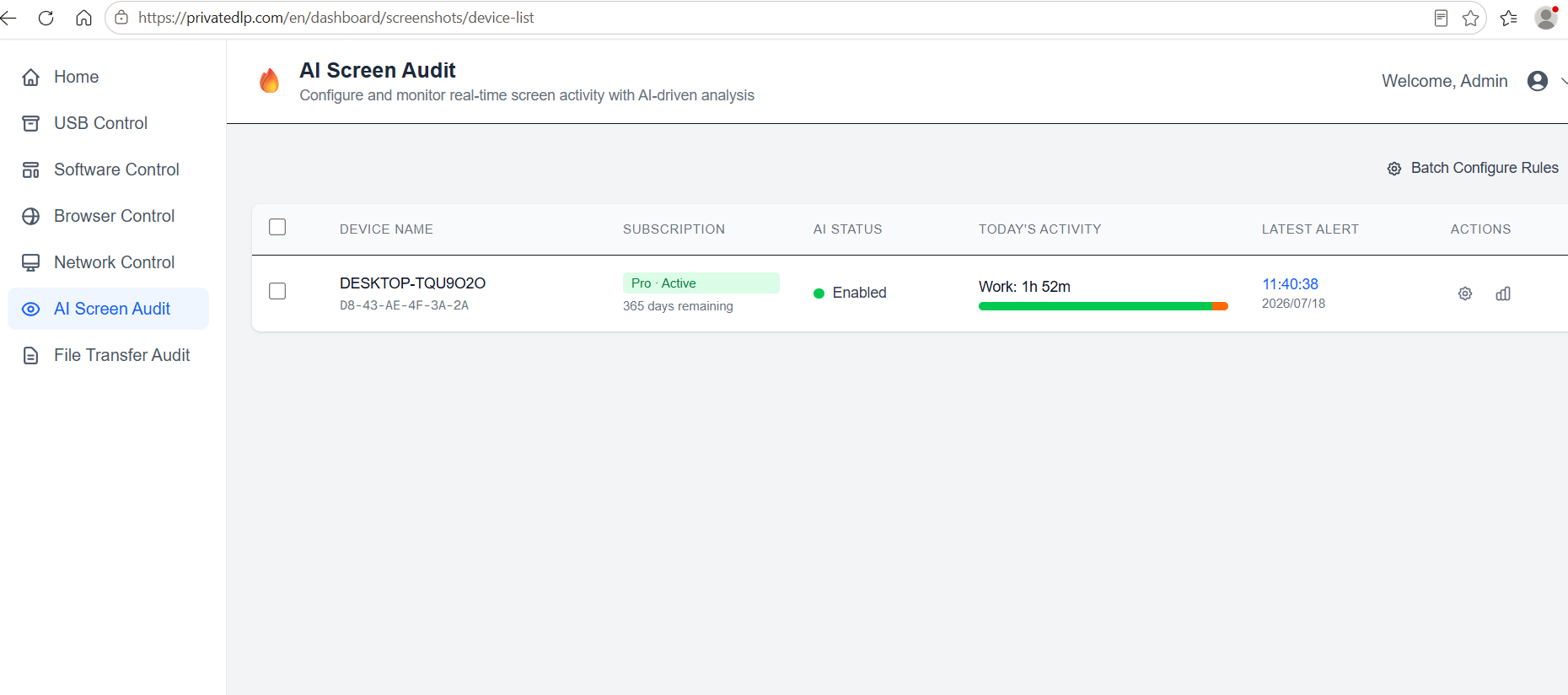
Administrators can choose two configuration modes:
Configure rules for individual devices: Click the settings icon next to a target workstation to open the rule editor pop-up window.
Perform Batch Configure Rules: Apply identical AI audit and pause settings to multiple selected devices at once.
Inside the configuration panel:
Toggle Enable Screen Capture and AI Analysis to globally turn AI screen monitoring ON or OFF for the endpoint.
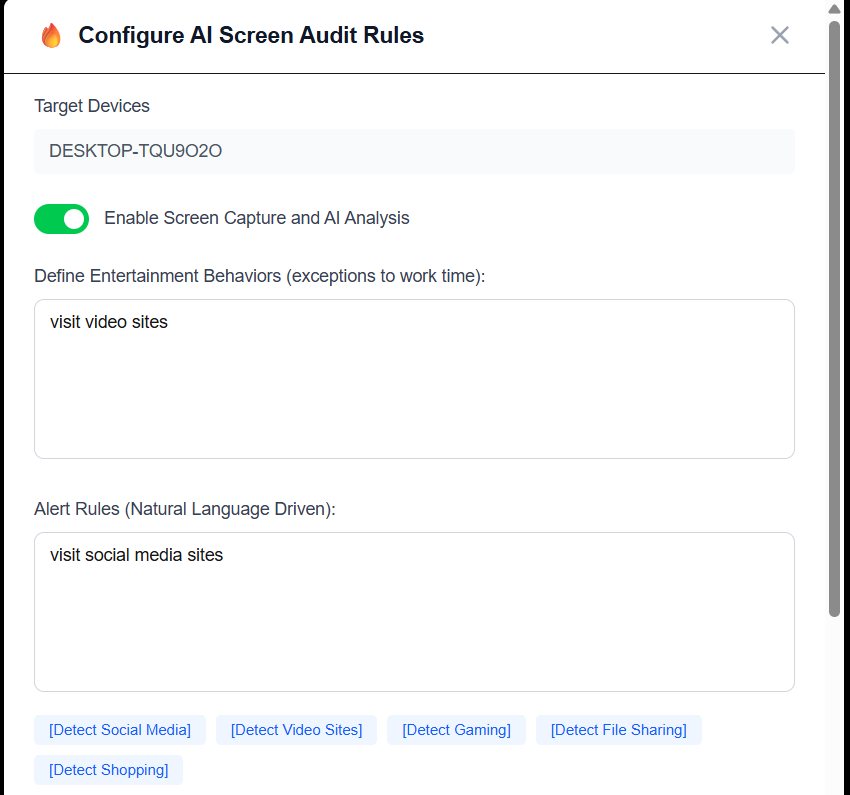
Define work/non-work classification rules and natural-language alert triggers for AI analysis.
Locate the Pause Monitoring Configuration section to set core restrictions:
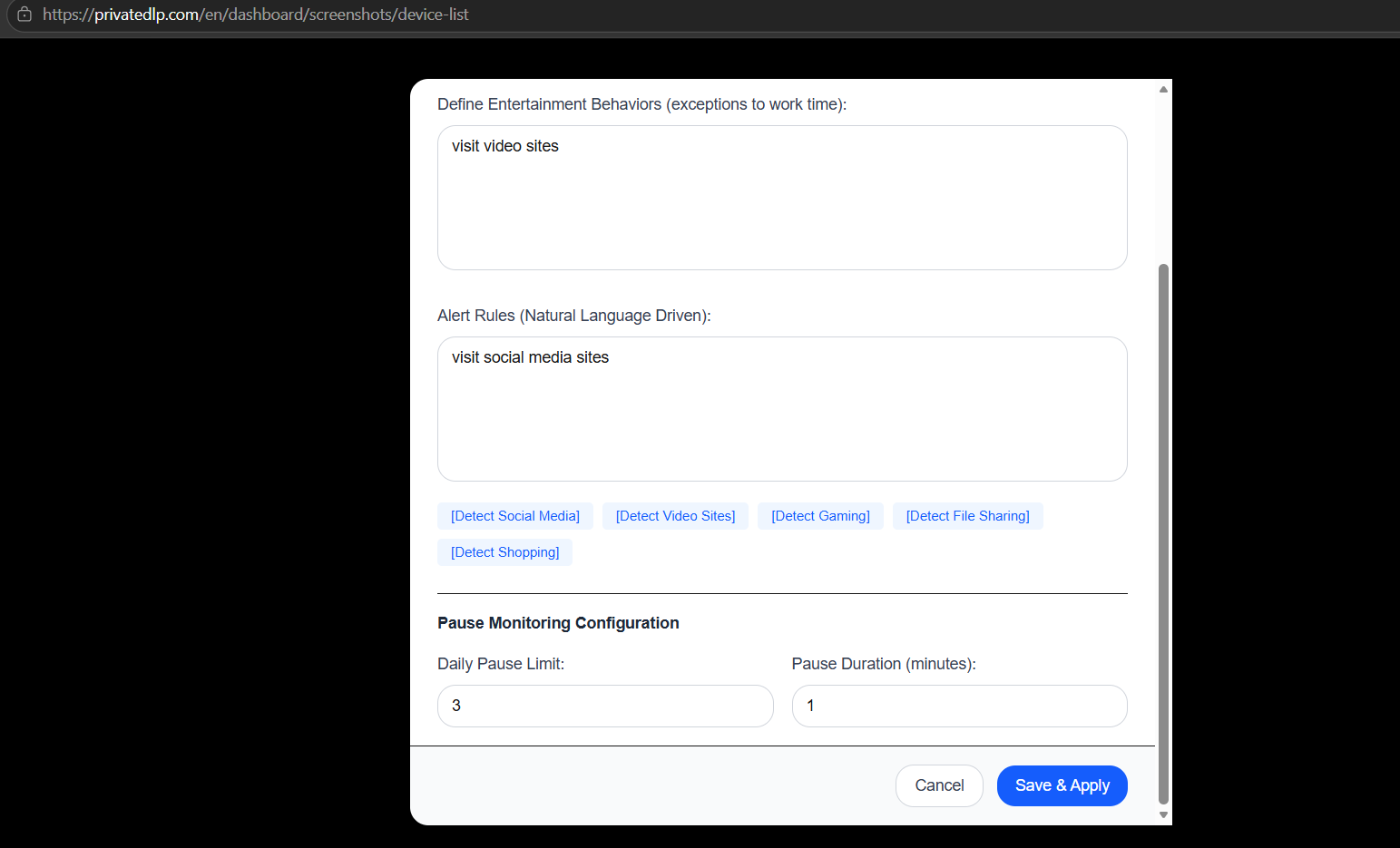
Daily Pause Limit: The maximum number of times an employee may pause auditing within one calendar day (example value: 3 times).
Pause Duration (minutes): Fixed length for each single pause session (example value: 1 minute).
Click Save & Apply. Updated policies will be automatically pushed to the target Windows clients.
Important: If administrators set the daily pause limit to 0, employees lose the ability to initiate monitoring suspension entirely.
3. How Employees Use the Pause Function on Windows Client
When the administrator has enabled the pause feature for their device:
Locate the PrivateDLP client icon inside the Windows system tray.
Right-click the tray icon and select the option to pause monitoring.
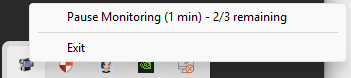
A pop-up notification appears on screen, showing the active countdown timer and remaining available pause attempts (example: Pause Monitoring (1 min) - 2/3 remaining).
During the countdown period, the system stops capturing screenshots and suspends AI screen analysis.
Once the timer expires, AI screen audit automatically resumes without manual intervention.
If the employee exhausts all allocated daily pause attempts, the pause option will no longer be available until the daily quota resets.
4. Key Control & Audit Safeguards for Administrators
To prevent misuse of the pause function and maintain enterprise security visibility, PrivateDLP includes built-in governance controls:
Hard policy limits: Employees cannot extend pause duration or increase daily allowed times independently. All boundaries are locked by administrator settings on the web console.
Full activity logging: Every pause initiation, start time, end time, and remaining quota is recorded on the server. Administrators can review all historical pause events for auditing.
Per-device granularity: Pause permissions can vary across different teams and workstations. High-security endpoints can be configured with zero allowed pauses.
No bypass for other security policies: Pausing only affects AI screen audit. All core Standard Edition controls (USB security, device restrictions, website filtering, application blocking) remain fully active during the pause window. Data leakage prevention rules continue running uninterrupted.
5. Business & Compliance Advantages
5.1 Improve Workplace Transparency & Employee Trust
By offering controlled privacy windows, enterprises demonstrate transparent monitoring practices. This reduces staff resistance to endpoint security tools and minimizes internal disputes related to workplace surveillance.
5.2 Support Global Privacy Regulation Compliance
Many regional privacy frameworks require employers to consider reasonable employee privacy interests. The self-service pause feature provides documented evidence of balanced monitoring policies, supporting Data Protection Impact Assessments (DPIA) and easing GDPR, CCPA and similar compliance burdens.
5.3 Avoid Security Blind Spots
Unlike fully unrestricted pause tools with no time caps, PrivateDLP enforces rigid administrator-defined limits. Organizations avoid risks from indefinite, unregulated suspension of security monitoring. Critically, USB DLP and network access policies remain enforced at all times.
6. Summary
PrivateDLP’s configurable employee self-service monitoring pause feature differentiates it from rigid traditional DLP and employee monitoring software. Administrators retain complete authority to set quotas, session lengths, and eligibility via the unified web console, while end users gain a controlled way to pause screen auditing during personal tasks.
The architecture separates AI screen audit suspension from core USB and network data leakage prevention controls. Security defenses stay active at all times, while enterprises implement fair, transparent monitoring that aligns with modern workplace privacy expectations.