PrivateDLP (Pro‑edition upgraded from USB Disk Security) delivers enterprise‑grade data leak prevention, USB device governance, network access control, and AI‑powered workplace activity auditing for Windows endpoints. Every endpoint client maintains a local license tile on the main dashboard, allowing IT administrators to quickly verify activation state, expiry date, and understand device quota rules tied to license keys.
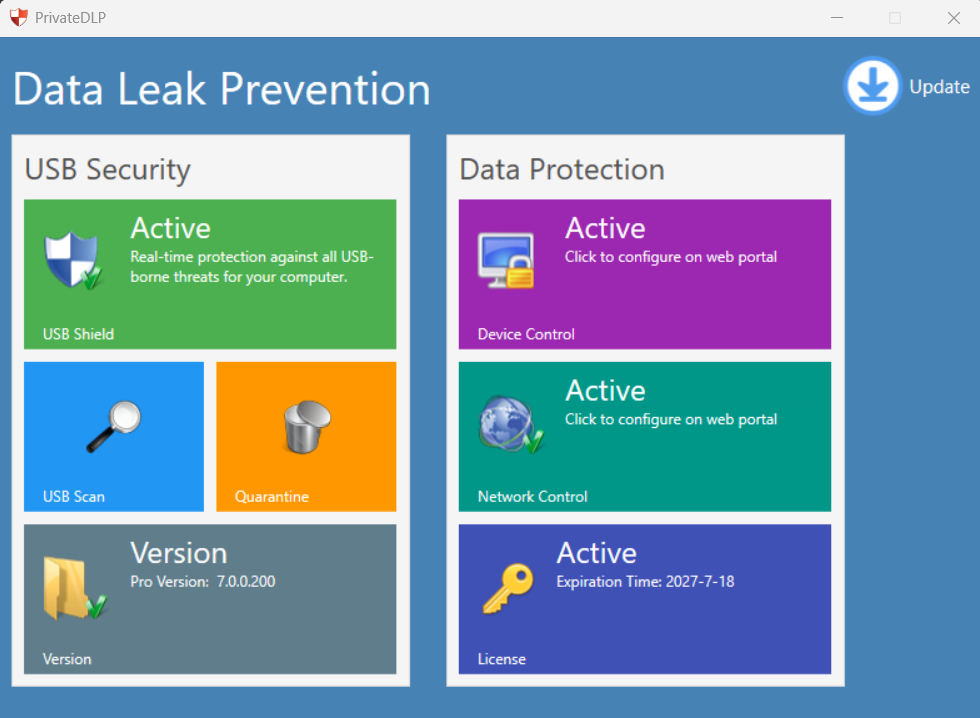
The license panel is located at the bottom‑right tile of the PrivateDLP main UI. When the product is properly activated, the tile shows Active status together with clear license expiration timestamp (for example: Expiration Time: 2027‑7‑18). If activation fails or no valid license is applied, this key‑themed tile will display Inactive, and advanced DLP features will be restricted until valid licensing is completed.
License Key Types & Device Quota Rules
Two primary licensing delivery models are supported for PrivateDLP endpoints, with different device quota behaviors:
Standard online‑purchased license keys
Registration codes ordered directly from our official website follow a one‑key‑one‑device quota rule. Each individual license key can activate exactly one Windows endpoint. Administrators need to apply separate registration codes when deploying across multiple employee workstations. After successful activation, expiry time and Active status will render on the local client dashboard.
Enterprise MSI deployment package with bulk activation keys
For corporate roll‑out scenarios, we provide customized MSI installation bundles embedded with enterprise activation credentials. During silent or interactive installation, endpoints get activated automatically without manual input on each machine. Once provisioned, every deployed Windows client will locally reflect its license status and expiration date inside the PrivateDLP GUI, consistent with web‑portal license management records.
Device quota consumption is tracked both on the web management portal and reflected locally on each endpoint. Administrators can review total assigned devices, used seats and remaining quota centrally from the web console.
How to Check License Status Locally on Windows Client
Launch the PrivateDLP Windows client application.
Locate the License tile at bottom‑right of the main interface, marked with a key icon.
Read the status label:
Active: License is valid. Check the Expiration Time field for contract end date. All features including USB control, network filtering, USB file copy logging, and AI screen auditing are fully available.
Inactive: No valid license applied. Pro‑level capabilities will be locked. You need to input valid registration credentials or re‑deploy the enterprise MSI package.
Even with inactive licensing, basic USB Shield functions may run in limited mode; full device‑control, network‑control, USB copy audit and AI productivity analytics require an Active valid license. Device‑level policies pushed down from the web portal will not take full effect on Inactive endpoints.
License and Quota Interaction with Core PrivateDLP Features
Valid activated licenses unlock the complete PrivateDLP capability stack:
USB security suite: real‑time USB threat shield, on‑demand USB scan, and quarantine vault.
Device control policy: block USB mass‑storage copy operations, deny full USB device access, build trusted peripheral whitelists, all configurable from the web portal.
Network control policy: website black‑and‑white lists, application launch restrictions, program‑level network access filtering.
Pro exclusive functions: log all file copy operations between local disk and USB drives, trigger configurable alerts for sensitive file‑type transfers.
AI‑driven screen audit: periodic workstation screenshots sent to LLM for workplace‑time analysis. You may use default Gemini backend (screenshots never used for model training), or bring‑your‑own‑LLM including OpenAI, Claude or self‑hosted internal large models. Screenshot artifacts are deleted immediately after analysis by default; alert snapshots can be persisted to customer‑managed S3‑compatible storage or our secure repository as configured.
All above enterprise DLP features respect your purchased device quota. When endpoint activations exceed purchased seat quota, newly provisioned clients will show Inactive license status until you expand your license allocation.
Web Portal Cross‑Verification
While each Windows endpoint shows its local license state and expiry time on‑GUI, administrators are encouraged to cross‑validate device quota and license validity via the web management portal. From the portal you can:
Review all activated endpoints under your enterprise account.
View total purchased seats versus currently consumed device count.
Check license expiration dates in batch for all workstations.
Troubleshoot endpoints showing Inactive status due to quota overrun or key expiry.
Common Troubleshooting Tips
Client shows Inactive after MSI deployment: verify the enterprise activation key has sufficient remaining device quota for the new workstation.
Expiration timestamp mismatches between web portal and local client: trigger a policy sync from web portal, so the Windows client pulls updated licensing metadata.
License expiry approaching: renew enterprise contracts ahead of time to prevent endpoints switching to Inactive and halting enforcement of your USB and network data‑leakage prevention rules.
Closing
The local License tile inside PrivateDLP offers fast, at‑a‑glance visibility into activation and expiry for every Windows endpoint. Combined with web‑portal device‑quota oversight, IT teams maintain full control over DLP feature availability across the organization, ensuring USB governance, network restriction and AI‑powered employee activity audit run only on properly licensed devices.